"Save an Alpha preview
in light mode."
A SYSTEM ONE IMPLEMENTATION · SOURCE PREVIEW
Let Jev choose
the next
browser step.
Your agent sets the task.
System One handles the small choices.
The browser companion puts System One's decision tools into a computer-use workflow. Give your agent a dedicated browser it can observe and control. Delegate a short sequence, then inspect the final screen and every decision that led there.
Source preview · Your cloud or local connection
Node 22.18+ and installed Chrome or Chromium
 SYSTEM ONE
Browser companion
- 01 Read current controls OBSERVE
- 02 Ask Jev for the next step DECIDE
- 03 Check state, then act EXECUTE
A bounded loop. A visible stopping point.
Final screenshot + action trace
The agent verifies the result.7 browser companion tools1 host call for a short loop12 maximum decisions per runYOUR ENGINE cloud or local
OPEN THE RECEIPTS
A saved preview.
And a stop for review.
These are real runs on our original test fixture. Change the task to see its final screen, decision trace and measured time.
RECORDED BROWSER RUNSORIGINAL FIXTURE · 20 SEP 2026
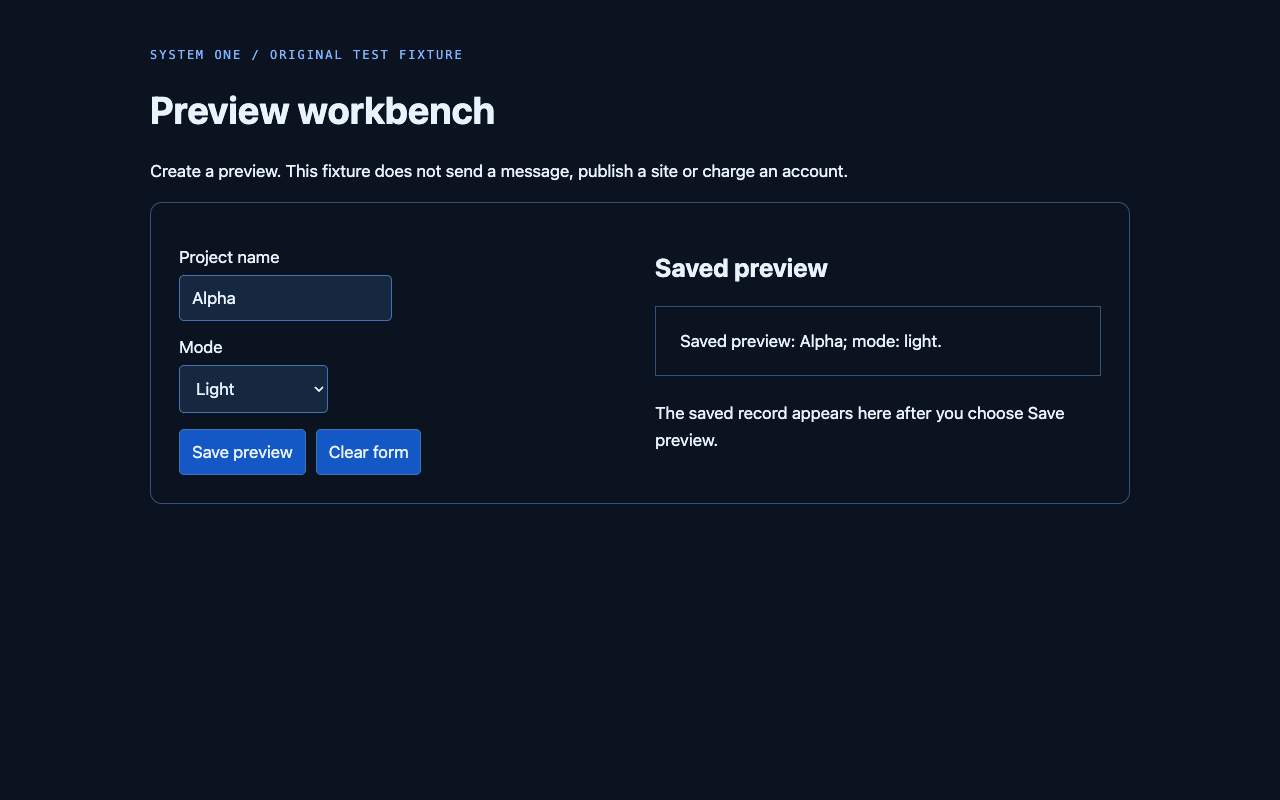
Saved record independently checkedVERIFIED IN FIXTURE
DECISION TRACE
- 01Fill the field
Project name
372ms engine receipt · executed - 02Choose the option
Mode
570ms engine receipt · executed - 03Activate the control
Save preview
302ms engine receipt · executed - 04Return for verification
Caller checks the outcome
330ms engine receipt · advice only
TASK ATTEMPT2.348s
Includes observations, calls, actions and the final image. Excludes browser startup and the main agent's review.
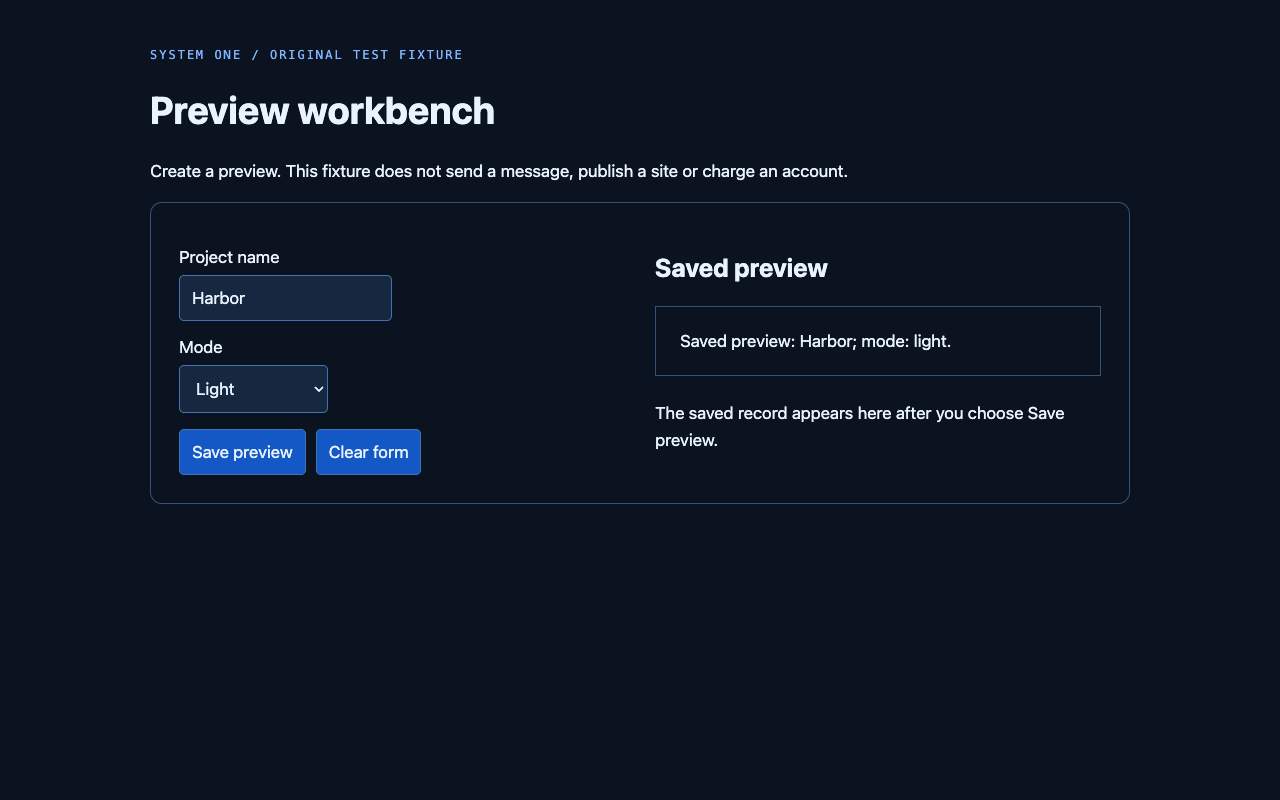
Saved record independently checkedVERIFIED IN FIXTURE
DECISION TRACE
- 01Activate the control
Save preview
244ms engine receipt · executed - 02Return for verification
Caller checks the outcome
271ms engine receipt · advice only
TASK ATTEMPT0.729s
Includes observations, calls, actions and the final image. Excludes browser startup and the main agent's review.
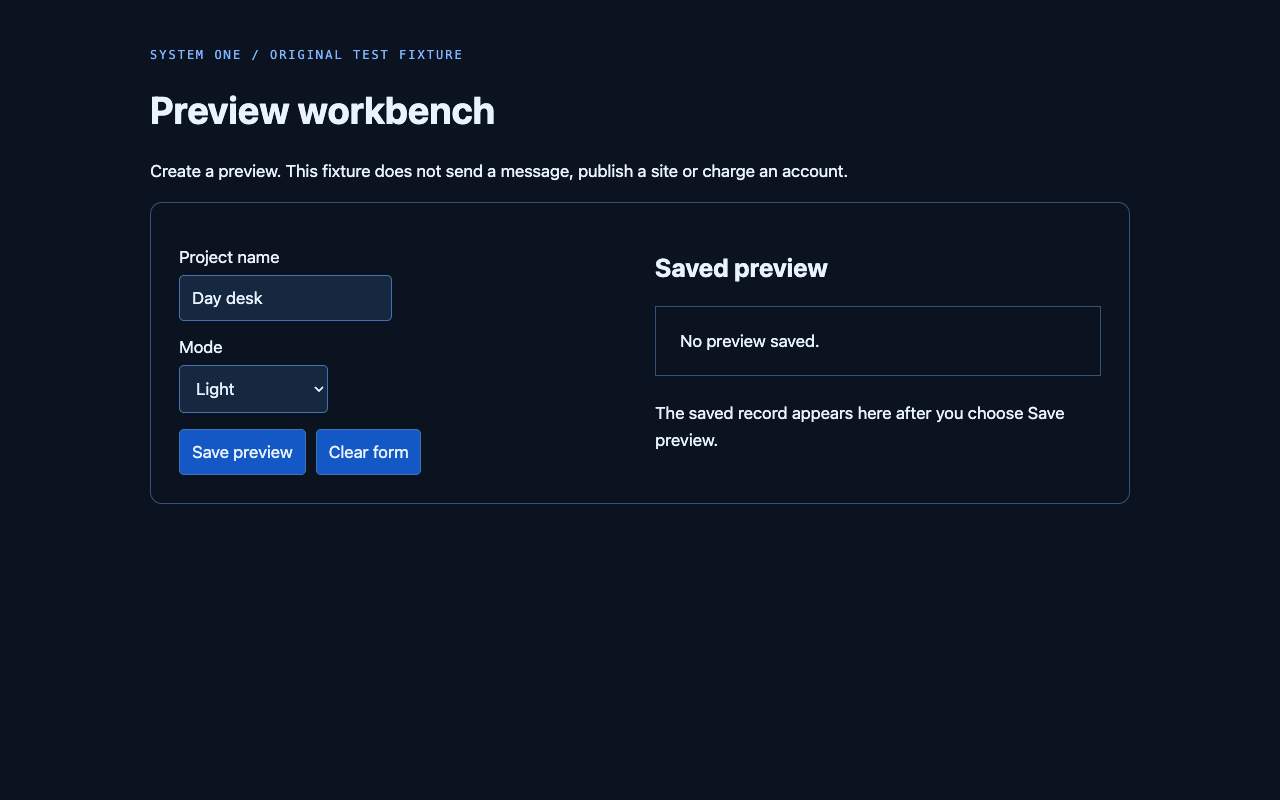
Returned to the calling agentNEEDS REVIEW
DECISION TRACE
- 01Choose the option
Mode
277ms engine receipt · executed - 02Activate the control
Save preview
455ms engine receipt · stopped before execution
TASK ATTEMPT0.948s
Includes observations, calls, actions and the final image. Excludes browser startup and the main agent's review.
Shared-state development rerun, September 20, 2026. Four of six tasks reached the correct saved record; two stopped for uncertainty. The known script completed six of six faster. This is not a general success rate or a savings benchmark. Read both runs and the method ↗
WHERE IT CAN HELP
Keep the agent
on the task.
The agent can hand over a routine sequence instead of taking a new reasoning turn for every click. It still receives the screenshot when the sequence finishes or needs help.
The value thesis and next test ↗Choose among visible items
Match a task description to current buttons, links or tabs. Return an observed ID that the browser can check.
Fill a small form
Use text and dropdown values supplied by the agent. Check current values before choosing the next step.
Recognize when to stop
Return loading, missing controls, uncertainty and completion advice to the caller. Keep the actual result available for review.
See the cost of the attempt
Each decision uses your engine connection. Its receipt includes model calls, reported tokens and latency. Host review and fallback work still count.
BETTER INPUT FOR EACH DECISION
Give Jev the label.
And what it belongs to.
Two buttons can both say Save. Chrome's accessibility API adds the group name, field state and description that explain which control matches the task.
Save the draft settings.
t1SaveButton · Draft settings
Selectedt2SaveButton · Live settings
Actual case from our six-decision test. The control IDs stay bound to the observed DOM nodes.
What reaches Jev
- Computed names, roles and help text
- Named groups around each control
- Required, invalid, checked and expanded states
- Current values and exact comparisons computed in code
- Visible status messages and recent actions
Open shadow roots are supported. A changed accessible name invalidates an old observation.
6 / 6expected next-action choices
344 msmedian decision request round trip
Six original cases. One request each. No executed actions, task-completion result or savings claim. Read every attempt ↗
ONE COMPANION, YOUR ENGINE
Cloud decisions.
A browser on your machine.
Use your invited cloud connection to avoid running a local engine. Or point the same helper at your own local System One app.
Connect a local MCP client
- Create a scoped connection with the
decideservice in your cloud workspace or local Studio. - Save its URL and token in a private connection file.
- Build the public source preview, then add the command below to an agent that can launch stdio MCP servers.
The helper needs a consumer connection. After cloning the public repository, run pnpm install --frozen-lockfile and pnpm build. Version 0.6.0 is awaiting npm publication; the source preview works now.
STDIO MCP CONFIGURATION
{
  "mcpServers": {
    "system-one-computer": {
      "command": "node",
      "args": [
        "/path/to/sysone/dist/cli.js",
        "computer",
        "--connection",
        "/private/path/agent.json"
      ]
    }
  }
}
Use your client's configuration location and schema. The protocol is tested; individual desktop clients have not all been verified.
CHECK BEFORE THE FIRST TASK
Find out what's ready.
Run the setup check from the same host that will launch MCP. It uses its own local test page and makes no model call.
node dist/cli.js computer doctorAdd --desktop to check the experimental Mac accessibility helper. It reports permissions without opening a permission prompt.
Computed accessibility + screenshots
Requires Node 22.18+ and installed Chrome or Chromium. It uses a separate profile and needs no Mac desktop permission.
One requested application
The optional reader needs Apple Command Line Tools and Accessibility permission. Our native fixture did not return a usable focused window; native control extraction remains unverified. No desktop input or native screenshots.
THE TOOLKIT
Take one step.
Or delegate a few.
The seven browser companion tools join the normal System One decision tools. The agent chooses how much of the task to hand over.
sysone_computer_doctorCheck the setup
Test the browser and accessibility API without spending an evaluation.
sysone_computer_startOpen a separate browser
A fresh profile on the starting origin.
sysone_computer_observeRead the screen
A screenshot for your agent, current control IDs for the next action.
sysone_computer_decideAsk Jev for one step
Operation and target questions share the same page state.
sysone_computer_actTake the chosen action
Use an observed control and text supplied by the agent.
sysone_computer_runDelegate a short sequence
Up to 12 decisions in one tool call, with a final screenshot and trace.
sysone_computer_closeFinish the session
Cancel the run, close its browser and remove its temporary profile.
WHAT EACH MODEL SEES
The image goes
back to your agent.
The helper sends bounded page text and control descriptions to Jev. It returns screenshots through MCP to the calling agent. Jev does not read image pixels in this integration.
Available in this preview
Visible HTML controls and open shadow roots on one origin, computed accessibility state, a fresh browser profile, caller-supplied text and a final trace. Sessions expire after ten minutes.
Separate adapters still to build
Hosted noVNC sessions and Mac desktop control need their own capture and input adapters. Web-only chat clients cannot launch this local helper. Canvas, frames, closed shadow roots, uploads, passwords and complex keyboard controls are unsupported.
Read the workflow and limits ↗TRY A TASK YOU CAN VERIFY
Start with one small browser job.
Use the companion on a form, filter or visible item choice. Keep a direct API or known script when it already solves the task.